Passkeys are replacing passwords — and they work by storing a private key on your device, never on the server
A passkey is a FIDO2 credential: a cryptographic key pair where the private key never leaves your device and the public key is registered with the website. Authentication happens by the website sending a challenge, your device signing it with the private key (verified by biometric or PIN), and the website verifying the signature against the stored public key.
There is no password to phish, no password database to breach, and no password to reuse across sites. For the websites most likely to be targeted by phishing — banks, email providers, social media — passkeys eliminate the attack vector entirely.
How FIDO2 / WebAuthn works
Registration (creating a passkey):
1. User initiates registration on example.com
2. Server generates a random challenge + Relying Party ID (the domain)
3. Browser calls navigator.credentials.create() with the challenge
4. Authenticator (device/platform) generates a key pair:
   - Public key → sent to server, stored in the database
   - Private key → stored securely on device (TPM, Secure Enclave, hardware key)
5. User verifies identity: Face ID / Touch ID / Windows Hello / PIN
6. Server stores: user ID + public key + credential ID
Authentication (using a passkey):
1. User visits example.com and clicks "Sign in with passkey"
2. Server sends a random challenge
3. Browser calls navigator.credentials.get()
4. Device finds the matching credential for example.com
5. User verifies: biometric / PIN
6. Device signs the challenge with the private key
7. Server verifies the signature against the stored public key
8. Authentication succeeds
What makes this phishing-resistant: the Relying Party ID is cryptographically bound to the origin. A passkey registered for bank.com cannot be used on bank-secure-login.com — the credential is tied to the exact domain. A phishing site cannot extract or replay the signature.
Platform passkeys vs roaming passkeys
Platform passkeys (synced credentials): Stored in and synced by the operating system's credential manager:
- Apple: iCloud Keychain — synced across all Apple devices signed into the same Apple ID. Available on iPhone, iPad, Mac, and as of iOS 17, cross-platform via QR code scan.
- Google: Google Password Manager — synced across Android devices and Chrome on any OS. Supports cross-device sign-in.
- Windows: Windows Hello — stored locally or synced via Microsoft account.
The UX implication: a passkey created on your iPhone is automatically available on your iPad and Mac (if signed into the same Apple ID). No extra setup required.
Roaming passkeys (hardware keys): Stored on physical security keys (YubiKey, Google Titan Key). Require physical possession. Not synced — if the key is lost, recovery is needed. Highest security tier; used by high-value targets (journalists, executives, security researchers).
Passkeys in practice: what the UX looks like
Creating a passkey (Chrome on Android):
- Navigate to account settings → "Create a passkey"
- Browser prompts: "Create a passkey for [email protected]?"
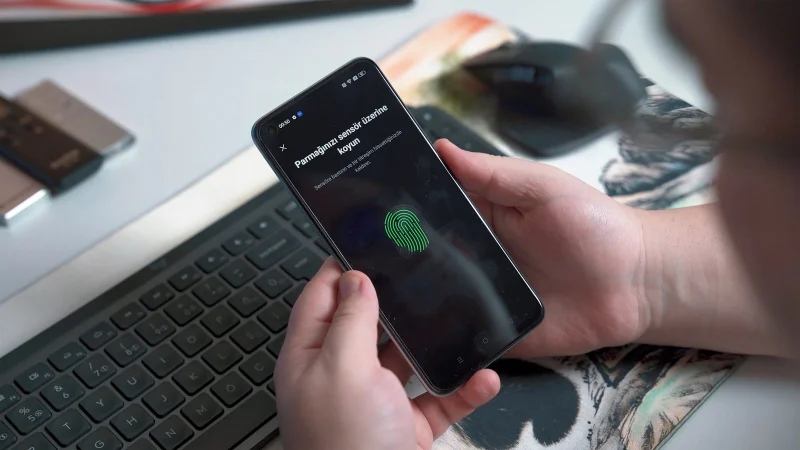
- Device shows fingerprint prompt
- Done — takes about 5 seconds
Signing in with a passkey:
- Enter email or choose account (some sites skip this)
- Device shows fingerprint/face prompt
- Authenticated — no password typed, no 2FA code needed
Cross-device sign-in (phone as authenticator):
- On desktop Chrome, click "Use a passkey"
- Choose "Use a phone or tablet"
- QR code appears on desktop
- Scan with phone camera → passkey prompt on phone
- Authenticate with biometric on phone → signed in on desktop
This cross-device flow uses Bluetooth proximity verification (to prevent remote relay attacks) and the BLE channel for communication.
Current passkey adoption
As of 2024–2025, passkeys are supported by:
- Google: Google accounts fully support passkeys; pushed as the default sign-in method for 2FA users
- Apple: Apple ID passkeys; iCloud Keychain syncs across devices
- Microsoft: Microsoft accounts support passkeys; Windows Hello integration
- GitHub: Added passkey support in 2023
- PayPal: Passkeys available for US users
- Amazon: Passkeys available in the US
- 1Password, Bitwarden: support saving and using passkeys via browser extensions (including on Windows without platform passkey manager)
- Numerous banks and enterprises: accelerating adoption following FIDO Alliance push
Current coverage: FIDO Alliance reports that major platforms covering billions of accounts now support passkeys. The main gap is legacy enterprise applications, smaller businesses, and countries where adoption is slower.
Passkey recovery: what happens if you lose your device
The most common concern: "What if I lose my phone and my passkeys were only on that phone?"
Synced passkeys (iCloud Keychain, Google Password Manager): Recovery = sign into your account on a new device. All synced passkeys restore automatically. No individual passkey recovery is needed.
The fallback: every service with passkeys retains a password or backup authentication method during the transition period. The passkey is an alternative method, not a replacement that removes fallbacks — yet.
For security-critical accounts: Generate and store a backup recovery code at registration. For accounts using hardware security keys, register two keys (keep one as backup).
Developer implementation with WebAuthn
SimpleWebAuthn is the most widely used JavaScript library for implementing WebAuthn:
// Registration (server-side)
const { generateRegistrationOptions } = require('@simplewebauthn/server');

const options = await generateRegistrationOptions({
    rpName: 'My App',
    rpID: 'myapp.com',
    userID: user.id,
    userName: user.email,
    attestationType: 'none',
    authenticatorSelection: {
        residentKey: 'required',     // Passkey (discoverable credential)
        userVerification: 'required'  // Require biometric/PIN
    }
});

// Send options to client, receive registration response
const verification = await verifyRegistrationResponse({
    response: registrationResponse,
    expectedChallenge: storedChallenge,
    expectedOrigin: 'https://myapp.com',
    expectedRPID: 'myapp.com',
});

if (verification.verified) {
    // Store verification.registrationInfo.credentialPublicKey in database
}
How to use the Password Generator on sadiqbd.com
While passkeys handle interactive sign-in, strong generated passwords remain essential for:
- Service accounts without browser-based login
- Legacy systems that don't support passkeys yet
- API keys and secrets
- Recovery codes for passkey-enabled accounts
Use the generator for these cases, and store the output in a password manager.
Frequently Asked Questions
Are passkeys actually more secure than a strong password + 2FA? For most users, yes. A strong password + TOTP 2FA is very secure but still phishable — a convincing fake site can capture both in real time and replay them. Passkeys are phishing-resistant by design because the credential is bound to the exact domain. For sophisticated users with hardware security keys, the security is comparable; passkeys are significantly easier to use for most people.
Can I use a passkey on a shared computer? Yes — the cross-device flow (QR code) allows you to authenticate using your phone even on computers that don't have your passkeys. The desktop never receives the private key; the phone authenticates and signals success over the Bluetooth proximity channel.
Is the Password Generator free? Yes — completely free, no sign-up required.
Try the Password Generator free at sadiqbd.com — generate cryptographically random passwords for any length and character set requirement.